Player Basics
I’ll walk you through the basic tutorial that you can find here. Here are a couple of other links to tutorials.
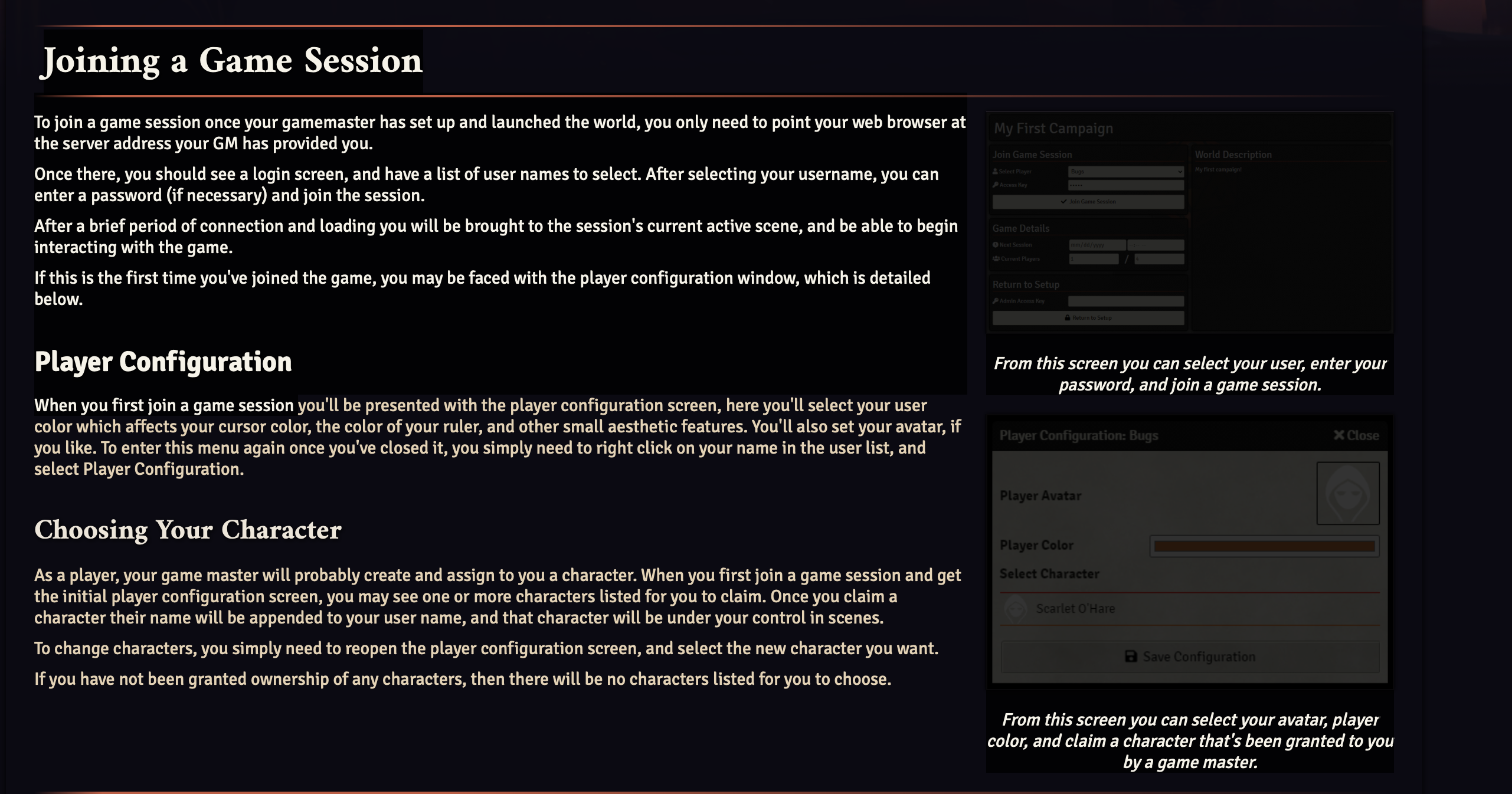
Join a Game Session
I’ll have you set with a default character (you can modify everything about this character). You also don’t need a password. Just pick your name and log in!
Game UI
The Game UI will often look slightly different from what you see below. The player’s list and macro hotbar are often going to be collapsed on the left, and the sidebar will often be collapsed on the right. These can be expanded as you like.
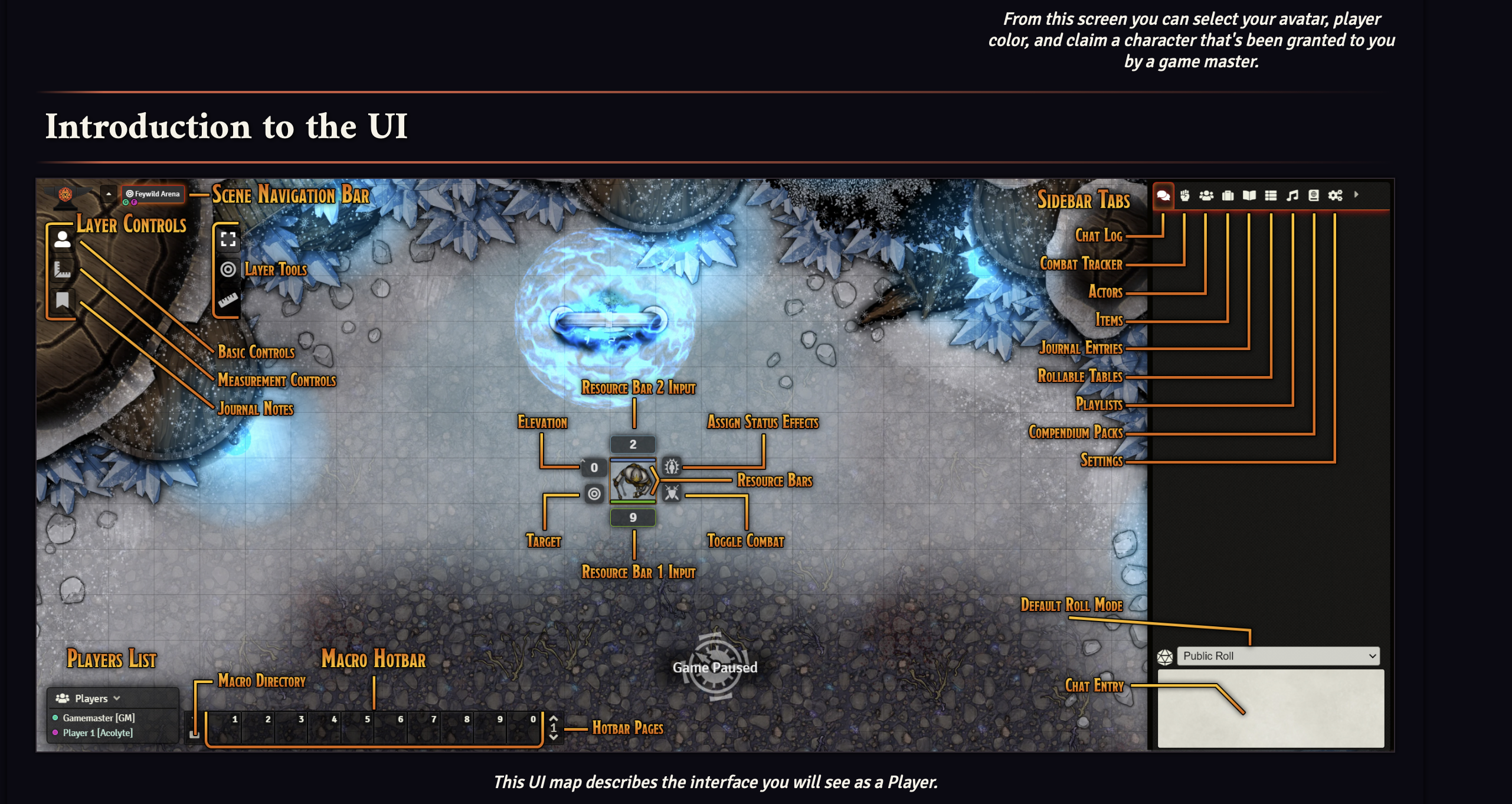
- Scene Navigation Bar
- Used to switch between currently available scenes.
- Sidebar Tabs
- Used to access data for the various documents stored in your world.
- Game Pause Indicator
- When the game is paused a rotating clock will appear. While paused, players may not move their tokens or manipulate doors.
- Layer Controls
-
Used to switch layers on your Scenes to control the various placed canvas objects. Each of these control layers provide a different set of layer tools. The available control layers that players can use include:
-
Basic Controls (
fas:User) for interacting with Tokens - Measurement Controls (
fas:RulerCombined) provide tools for Measurement and Templates which can be used to measure distance or mark area of effect. - Journal Notes (
ris:BookOpen) for viewing pinned Journal Entries called Map Notes
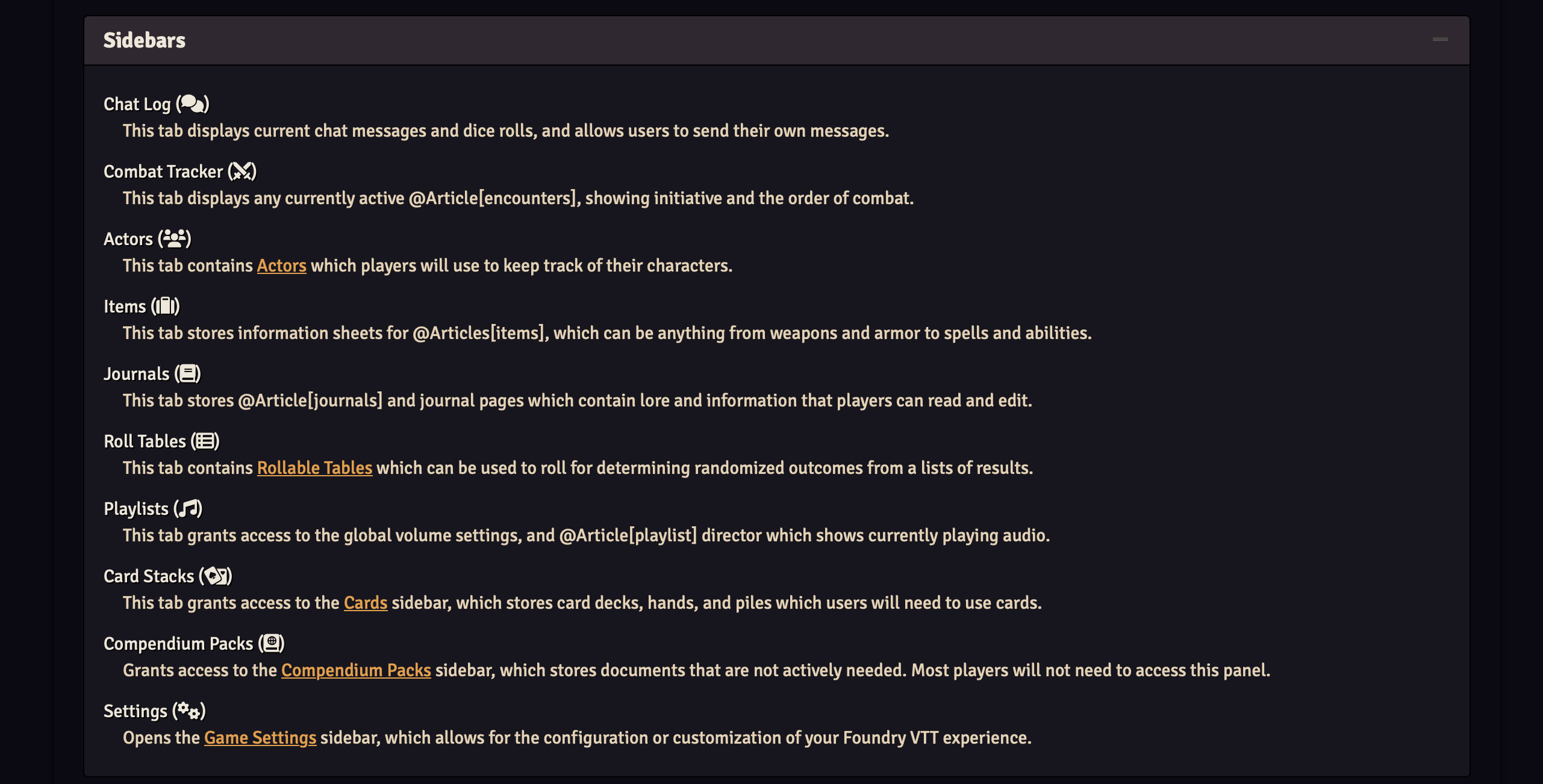
Sidebars
The sidebars are where you can find all your settings, actors, items, journals, etc. The sidebar will typically collapsed on the right. You can single click on any icon to create a separate window, or you can expand the sidebar and click through that way.
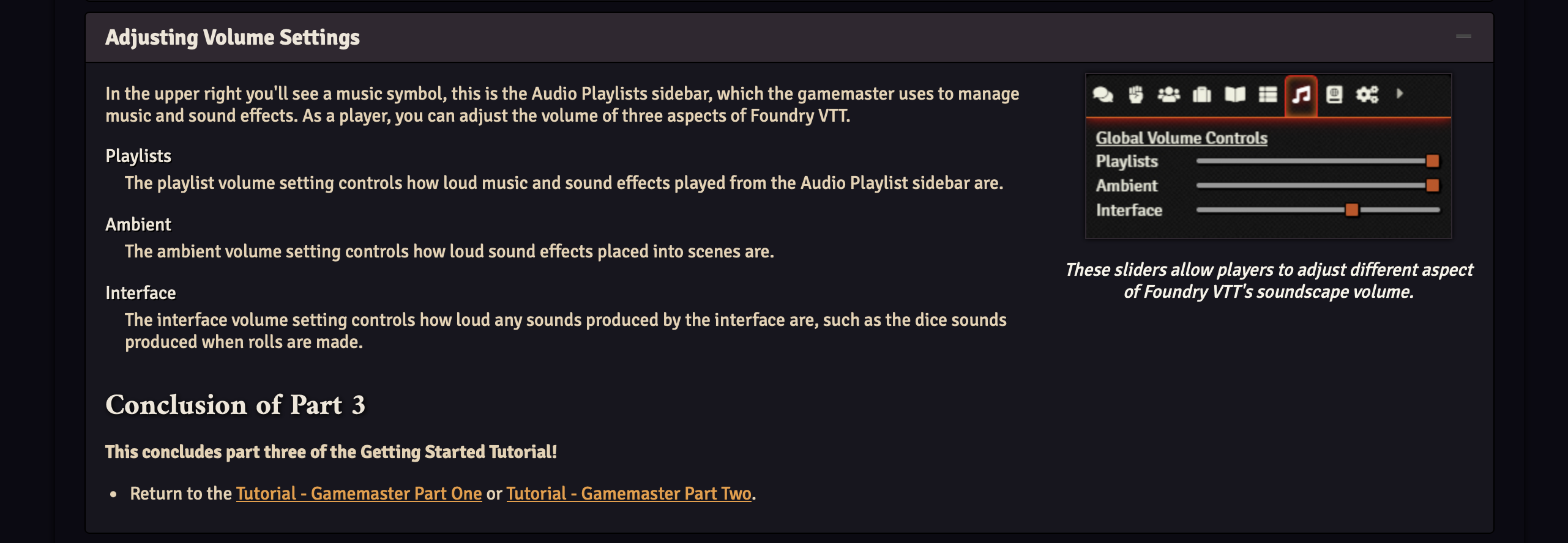
Sound & Volume
I’ll use some background ambient sound. If it gets annoying for you, or otherwise interferes with play, you can alter the volume as you prefer.
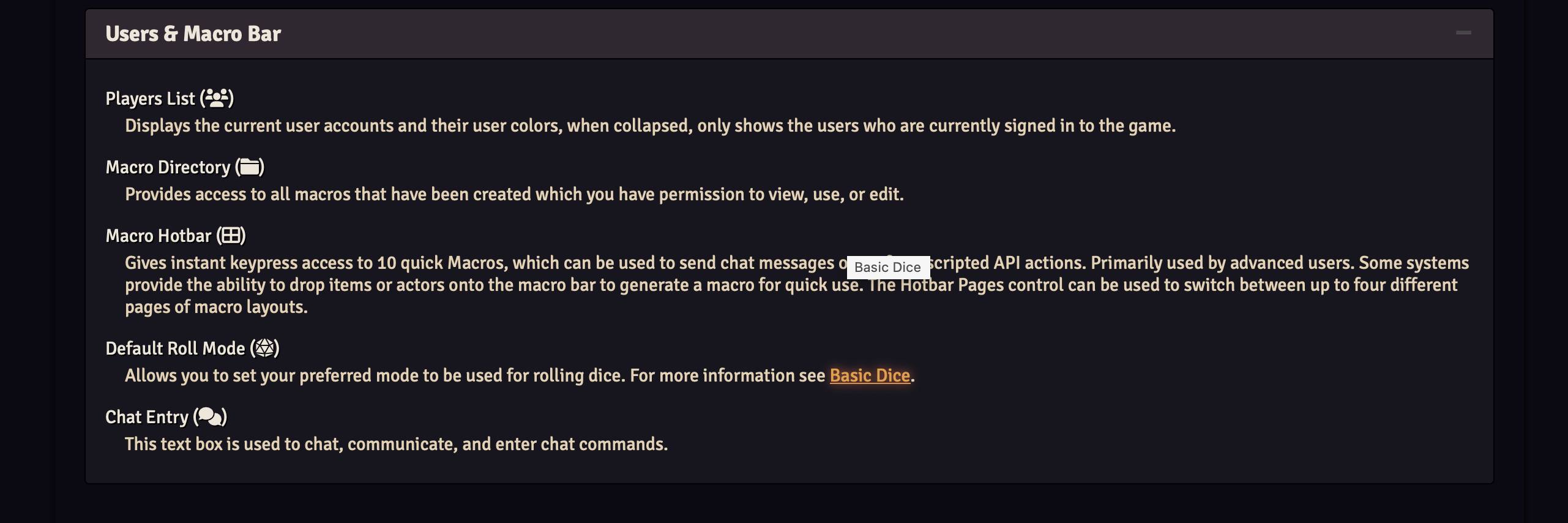
Users & Macros
Chat
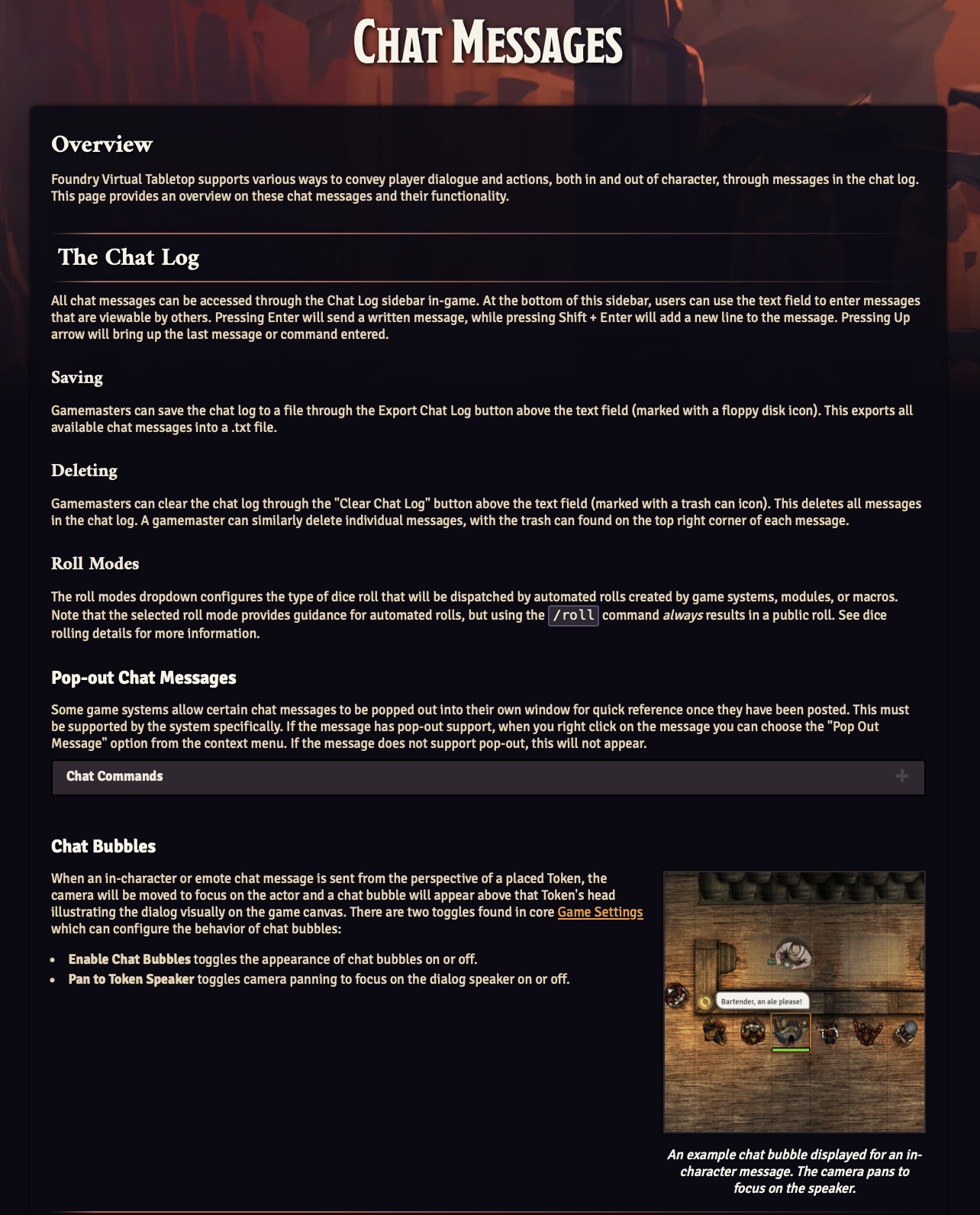
Other than your character sheet, the chat is probably the most important interface for you to use in Foundry, as it is where you will usually roll all dice and see the results of your and others rolls. You can also send messages to other players or the DM. For more extensive info see Foundry Chat Commands.
Your Character
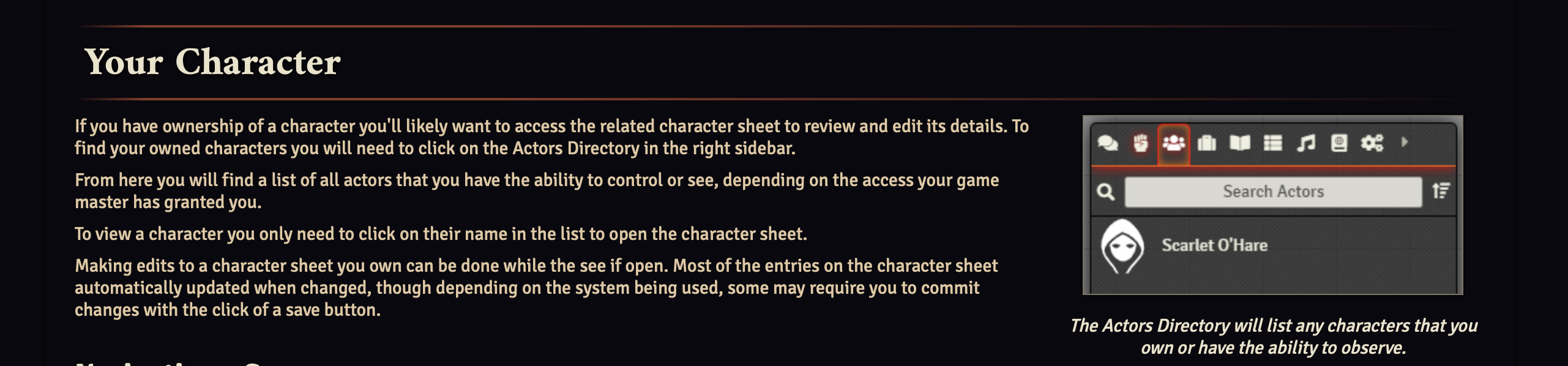
You can find your character in the “actors” tab in the sidebar.
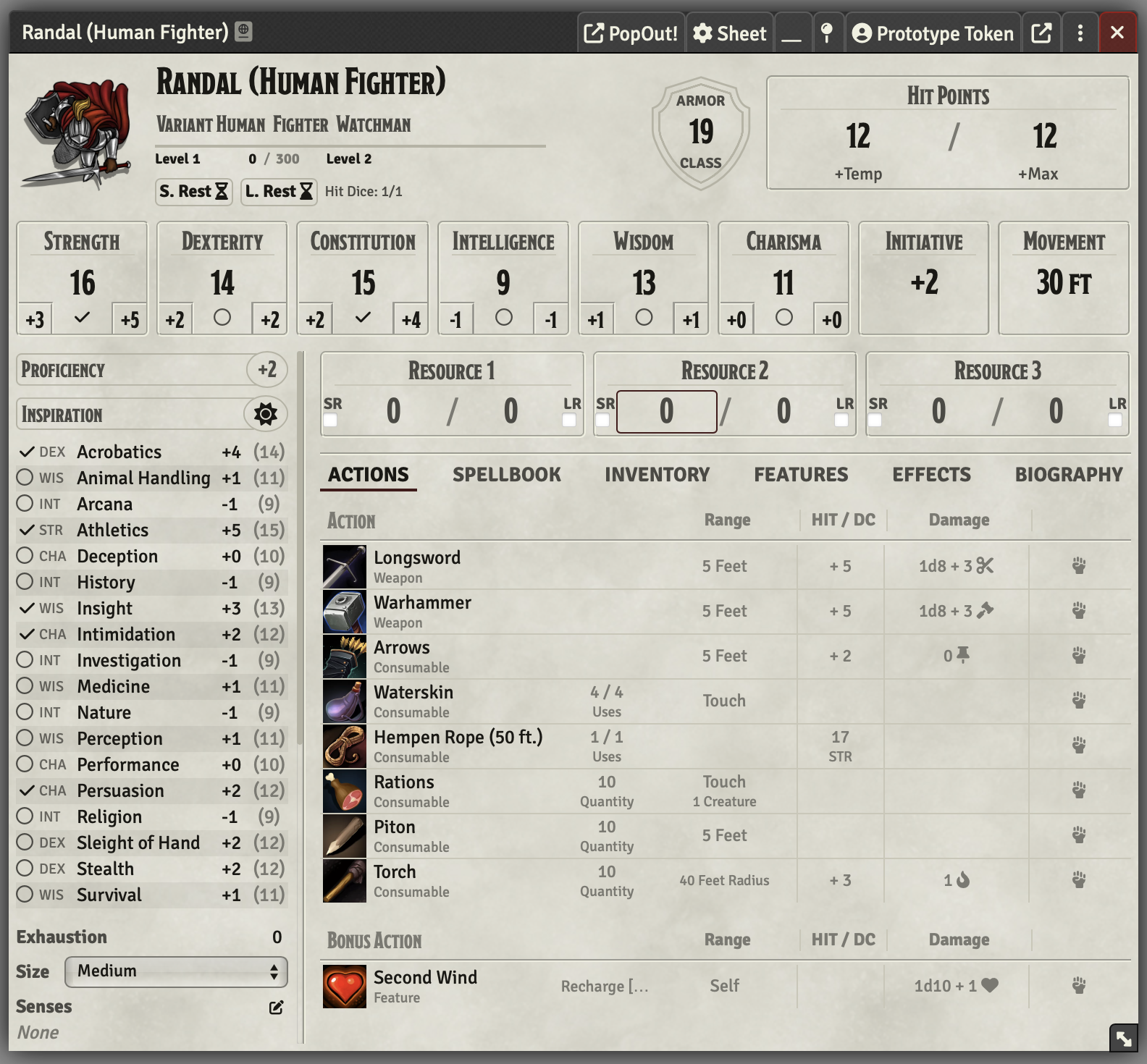
When you click on a character you own you’ll see your character sheet. It is roughly similar to a dndbeyond character sheet, if a bit denser. You can drag and drop items or spells, etc., onto the sheet.
Navigation
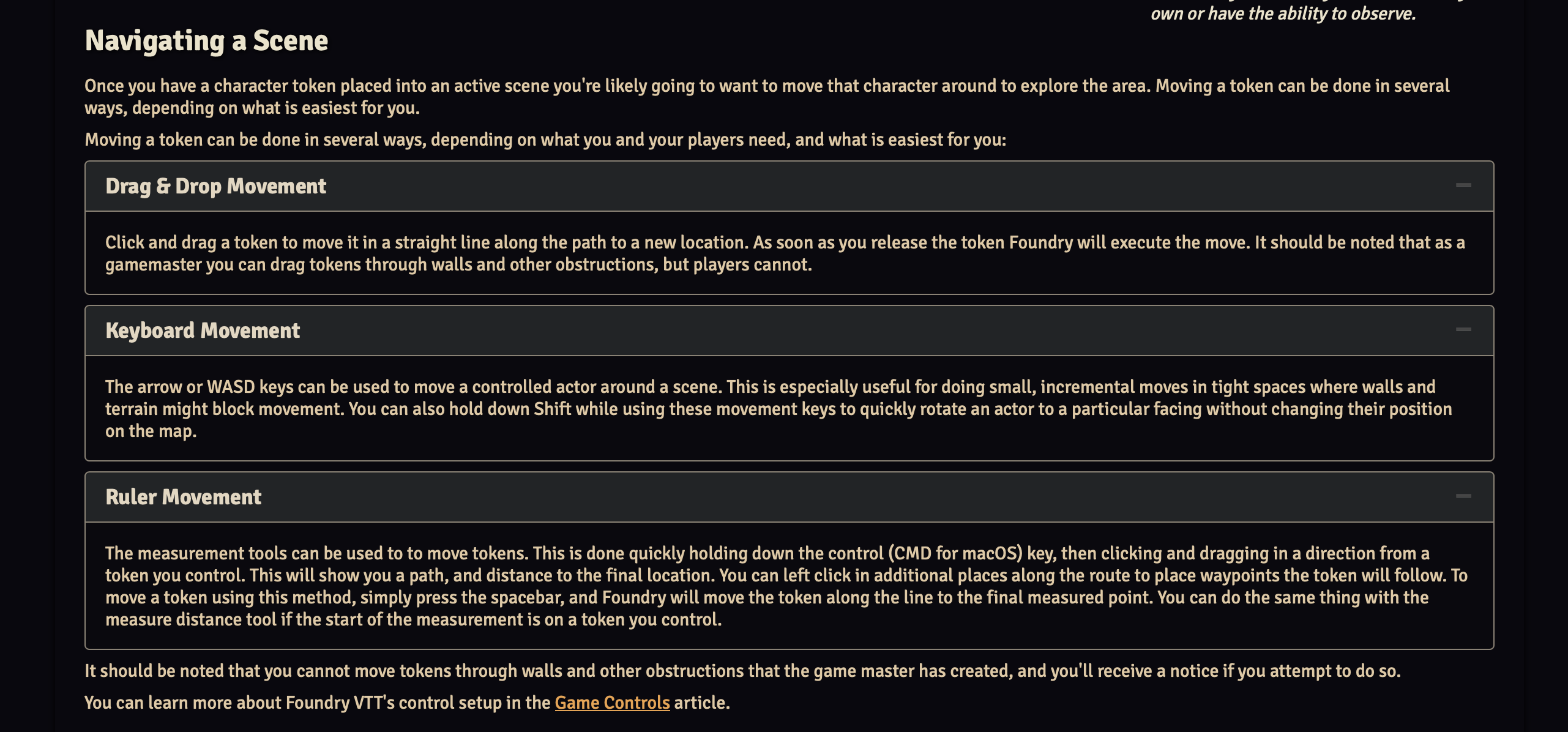
Just as with roll20, you can move by keyboard or dragging your token around (or drag it onto a scene if not present).
Your Token
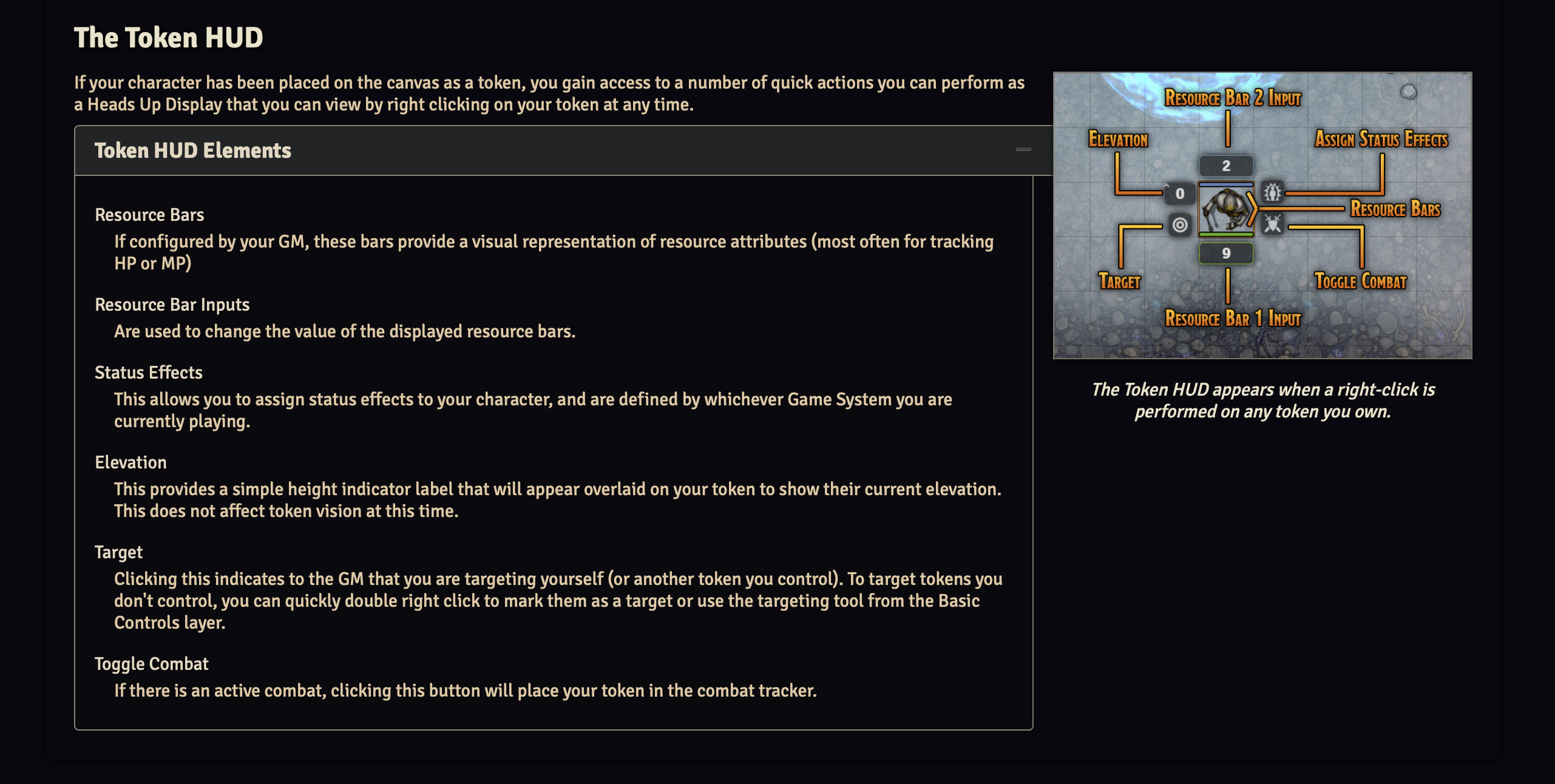
Your token is attached to your actor and character sheet. Right click on your token to see a number of actions you can take, and information. You can also get a quick glimpse of basic character info like AC and HP by hovering over your token and pressing the shift key.
Created : February 1, 2024